
Why Viewing Amazon Price History Matters
Amazon prices are notoriously volatile. According to Profitero's retail analytics, Amazon changes prices on millions of products up to 2.5 million times per day. That "deal" you're looking at might have been $20 cheaper last week—or it could be at an all-time low right now.
Without price history data, you're essentially shopping blind. An Amazon price tracker with a history extension solves this by showing you:
- Whether the current price is genuinely good or artificially inflated
- How prices fluctuate during sales events like Prime Day and Black Friday
- The lowest price a product has ever reached
- Patterns that help you predict future price drops
Let's explore the best extensions that add this crucial data directly to your Amazon browsing experience.
Top Amazon Price History Extensions Compared
There are several browser extensions that display price history charts on Amazon product pages. Here's how the major players stack up:
| Feature | Keepa | CamelCamelCamel | Honey |
|---|---|---|---|
| Price Chart on Product Page | Yes (detailed) | Yes (simple) | Limited |
| Historical Data Depth | Years of data | Years of data | 90 days |
| Multiple Data Lines | Yes (Amazon, 3P new, 3P used) | Yes (3 lines) | No |
| Browser Support | Chrome, Firefox, Edge, Safari, Opera | Chrome, Firefox, Edge, Safari, Opera | Chrome, Firefox, Edge, Safari |
| Amazon Marketplaces | 11 countries | 8 countries | US only (for Amazon) |
| Price | Free (premium $19/mo) | Free | Free |
Keepa: The Most Comprehensive Price History Charts
Keepa is the gold standard for Amazon price history tracking. With over 4 million Chrome users and a 4.7/5 rating, it's the extension serious shoppers rely on.
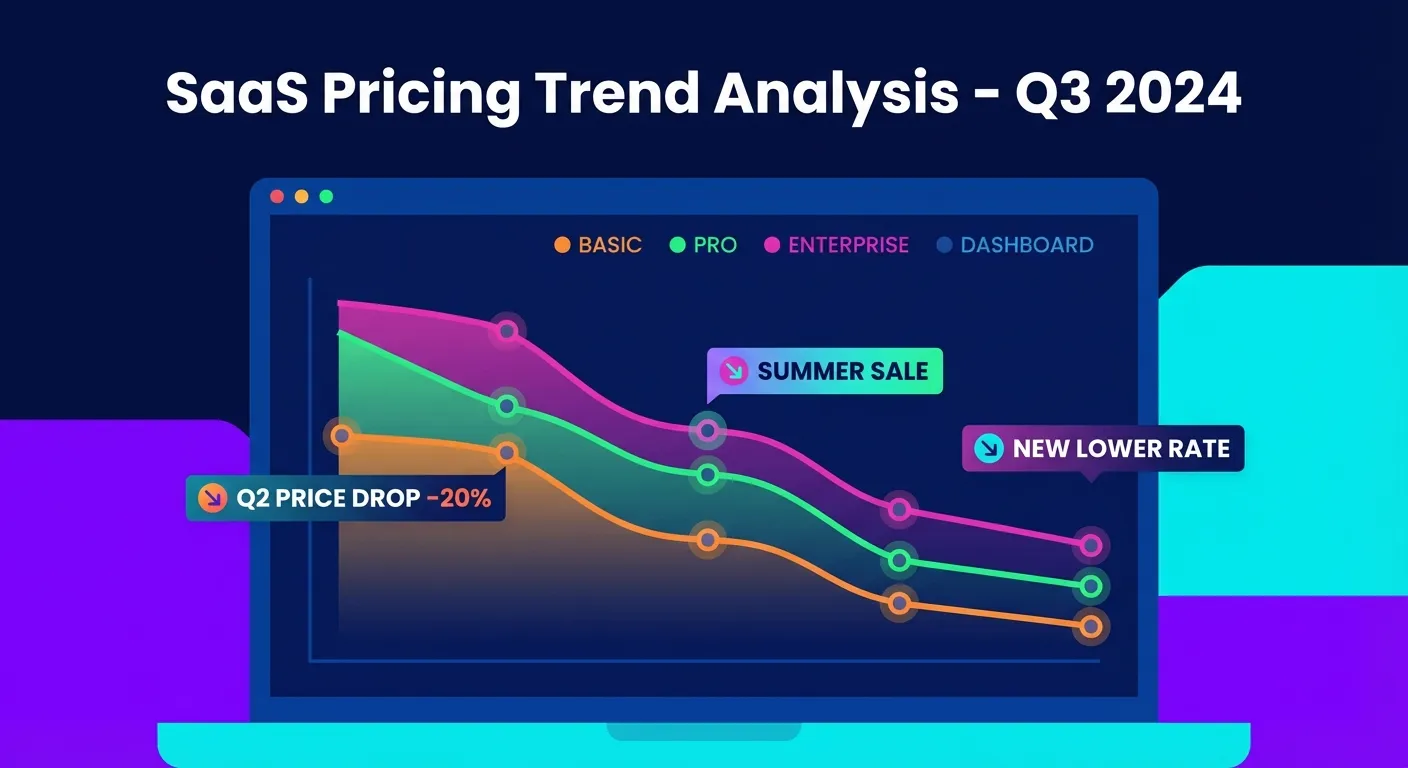
Once installed, Keepa automatically embeds a detailed price chart below every Amazon product listing. The chart displays multiple data lines:
- Orange line: Amazon's own price (when they're the seller)
- Blue line: Lowest price from third-party new sellers
- Black line: Lowest price from third-party used sellers
- Green line: Buy Box price (who's actually winning the sale)
Reading a Keepa Chart: Quick Guide
Understanding Keepa's charts takes a moment, but it's worth the effort. For a complete walkthrough, see our guide on how to read a Keepa chart. Here are the basics:
- Look at the timeline: The x-axis shows dates. You can zoom in on specific periods by clicking and dragging.
- Check the price range: The y-axis shows prices. Note the highest and lowest points.
- Identify the current price position: Is it near the top (expensive), middle (average), or bottom (good deal)?
- Spot the patterns: Many products drop during major sales. Some have regular weekly fluctuations.
The free version of Keepa provides price history and basic alerts. The $19/month premium tier adds sales rank data and the powerful Product Finder tool for serious Amazon sellers.
CamelCamelCamel: Simple, Free, and Reliable
CamelCamelCamel has been tracking Amazon prices since 2008. Its browser extension, called "The Camelizer," adds a cleaner, simpler chart to product pages.
What makes CamelCamelCamel stand out:
- Completely free with no premium tier—everything is available to everyone
- Cleaner interface that's easier for casual shoppers to understand
- Website alternative if you don't want to install anything—just paste a URL
- Email alerts that notify you when prices hit your target
CamelCamelCamel tracks three price types: Amazon's price, third-party new, and third-party used. While less detailed than Keepa, it's perfect for shoppers who just want a quick "is this a good deal?" answer.
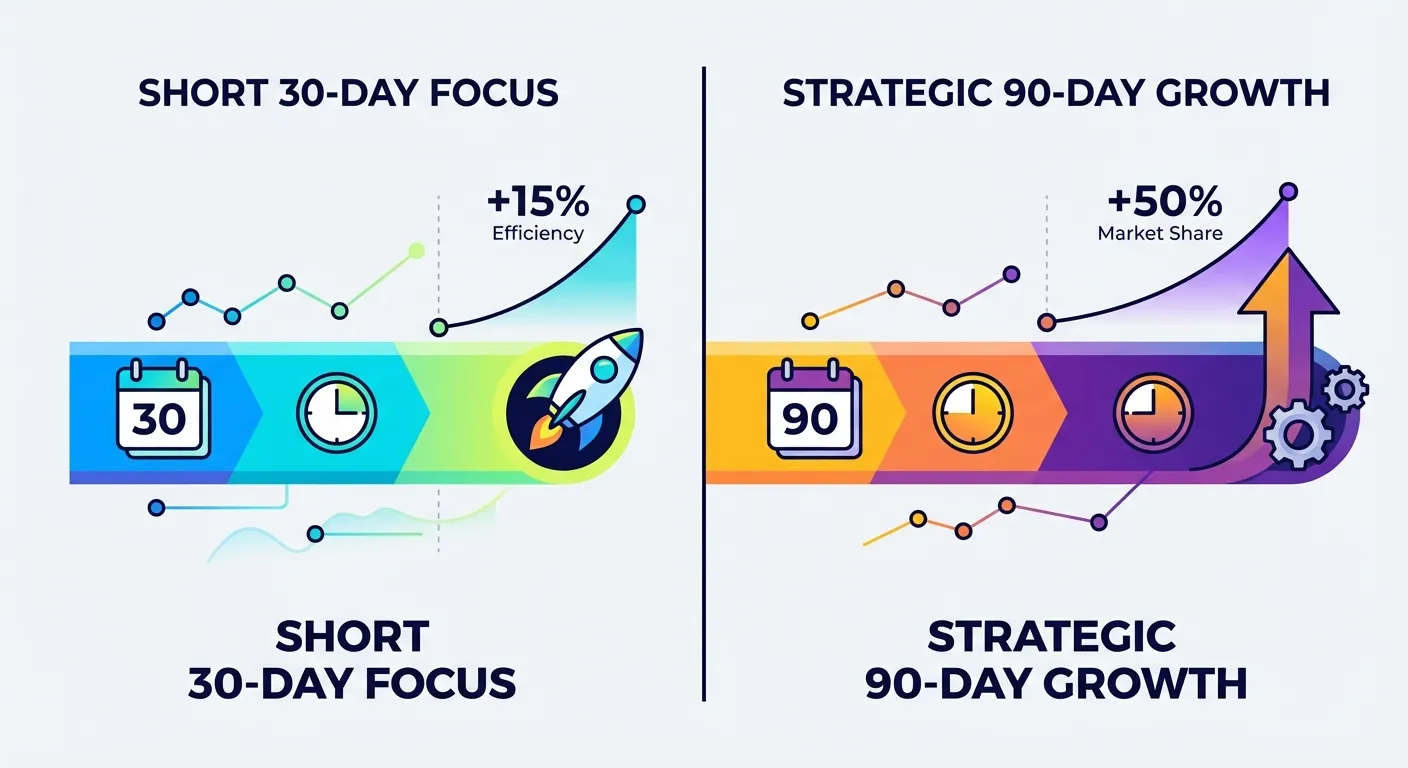
30-Day vs 90-Day Price History: What's the Difference?
Different tools show different timeframes by default, and this matters more than you might think.
30-Day History
A 30-day window shows recent price movements and is useful for:
- Seeing if a "sale" price was manufactured by first raising the price
- Catching short-term fluctuations
- Quick decisions on time-sensitive purchases
90-Day History
A 90-day (or longer) view gives you crucial context:
- Whether a product regularly drops to a lower price
- How major sales (Prime Day, Black Friday) affected pricing
- Whether the current "deal" is actually the norm
For detailed analysis, check out our article on 30-day vs 90-day Amazon price history.
The Limitation of Price History Extensions
Here's what price history extensions can't do: get your money back.
Picture this scenario:
- You buy a laptop for $899
- A week later, you check Keepa and see it's now $799
- You now know you overpaid by $100... but you still have to manually contact Amazon to ask for a credit
Most people don't realize that Amazon often issues courtesy credits for price drops after purchase. It's not an official policy, but it happens regularly when customers politely request it. The problem? Who has time to monitor every order and then spend 15-20 minutes negotiating with customer service?
TaskMonkey: Beyond Price History to Actual Refunds
This is where TaskMonkey fills the gap that traditional price history extensions leave open.
Instead of just showing you charts, TaskMonkey:
- Scans your last 3 months of Amazon orders automatically
- Compares what you paid against current prices
- Uses AI to contact Amazon customer service for you
- Politely negotiates credits or refunds on your behalf
- Deposits savings directly into your Amazon account
The entire process is hands-off. Click "Start Saving Now," go make dinner, and come back to find money in your account. We've helped users recover hundreds of dollars on purchases they'd already made and forgotten about.
Best of all, TaskMonkey only charges when we successfully get money back—20% of what we recover. If we don't save you anything, you pay nothing.
How to Set Up a Price History Extension
Getting started with any of these tools takes just a few clicks:
Installing Keepa
- Visit the Keepa Chrome Web Store page
- Click "Add to Chrome"
- Visit any Amazon product page—the chart appears automatically
- Click on the chart to customize your view and set alerts
Installing CamelCamelCamel (The Camelizer)
- Go to CamelCamelCamel's tools page
- Choose your browser and install the extension
- Create a free account to enable price alerts
- Visit Amazon and look for the Camelizer icon in your toolbar
For detailed installation help, see our guides on Keepa Chrome extension setup and the best Amazon price tracker extensions.
Frequently Asked Questions
Are Amazon price history extensions safe to use?
Yes, reputable extensions like Keepa and CamelCamelCamel have been trusted by millions of users for years. They only request access to Amazon's website and their own servers. Learn more in our article on whether Keepa is safe.
Do price history extensions work on mobile?
Keepa offers dedicated Android and iOS apps that provide price history. CamelCamelCamel can be used via mobile browser. For a comparison, see our guide on the best Amazon price tracker apps.
Can I see price history without installing anything?
Yes! CamelCamelCamel allows you to paste any Amazon product URL on their website to view its price history. It's a great option if you're not ready to install an extension.
How far back does price history data go?
Both Keepa and CamelCamelCamel maintain years of historical data for most products. Newer products will have shorter histories. The data goes back to when each tool first tracked the product.
Which extension should I choose?
If you want maximum data and don't mind complexity, choose Keepa. If you prefer simplicity and everything free, choose CamelCamelCamel. For a detailed breakdown, read our Keepa vs CamelCamelCamel vs Honey comparison.
The Smart Approach: Use Both
Here's our recommendation for getting the most value:
- Before buying: Use Keepa or CamelCamelCamel to check price history and decide if it's a good time to purchase
- After buying: Use TaskMonkey to automatically monitor your orders and recover money when prices drop
Price history extensions and TaskMonkey solve different problems. The first helps you make better buying decisions. The second helps you get money back on decisions you've already made. Together, they ensure you're never leaving money on the table.