
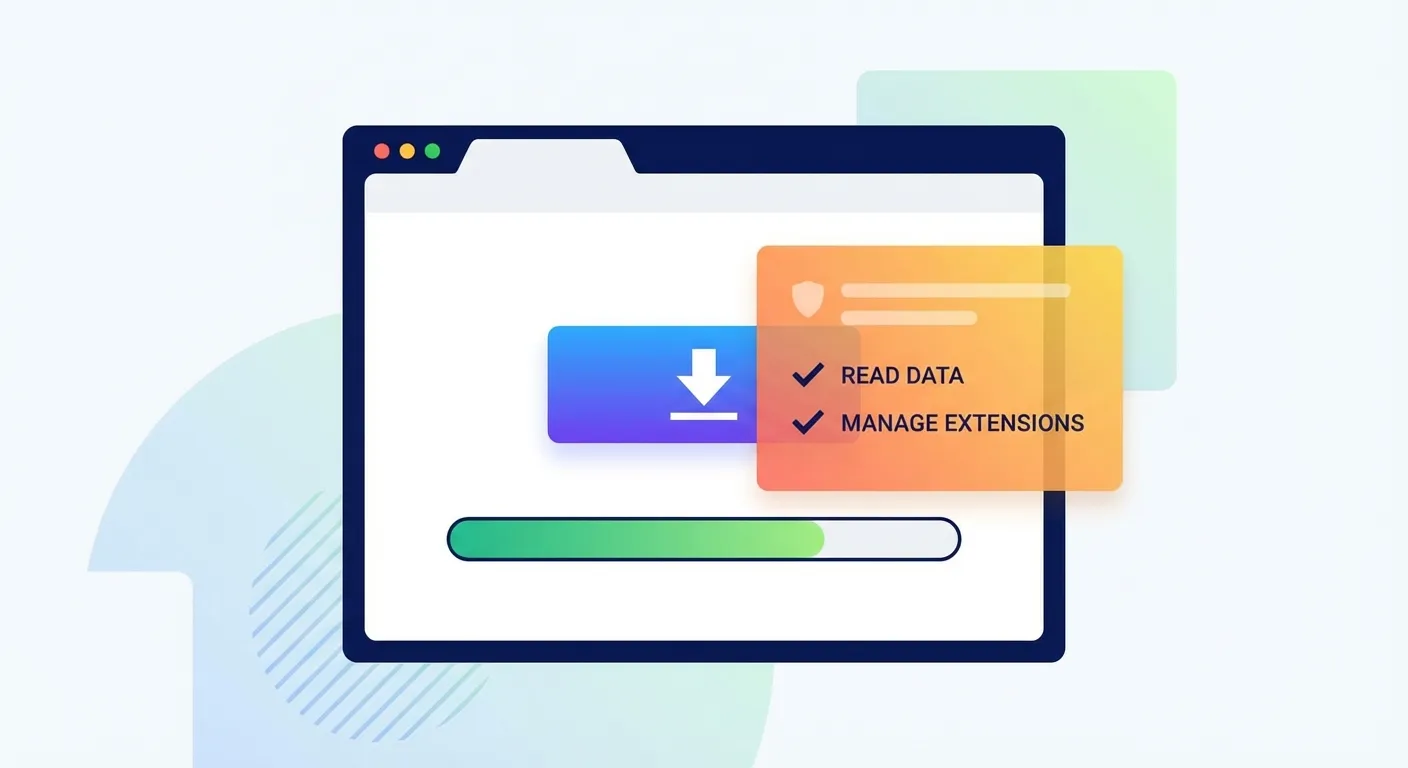
What Is the Keepa Chrome Extension?
Keepa is one of the most popular Amazon price tracking tools available, with over 4 million Chrome users and a 4.7-star rating. The extension embeds price history charts directly on Amazon product pages, helping you see whether a deal is genuine or if you should wait for a better price.
Key features of the Keepa Chrome extension include:
- Price history charts for every Amazon product
- Price drop and availability alerts
- Support for 11 Amazon marketplaces (US, UK, Germany, Japan, etc.)
- Sales rank tracking (premium feature)
- Data updated every 15 minutes
The extension is developed by Keepa.com, a German company that has been tracking Amazon prices since 2013. It's completely free for basic price tracking, with premium features available for $19/month.
How to Download and Install Keepa for Chrome
Installing the Keepa extension is straightforward. Here's the step-by-step process:
Step 1: Open the Chrome Web Store
Go to the Chrome Web Store in your browser. You can also search for "Keepa - Amazon Price Tracker" directly in the store.
Important: Make sure you're downloading the official Keepa extension. Look for:
- Publisher name: "Keepa.com"
- 4+ million users
- 4.7-star rating or higher
Step 2: Click "Add to Chrome"
Once you're on the correct extension page, click the blue "Add to Chrome" button in the top right corner.
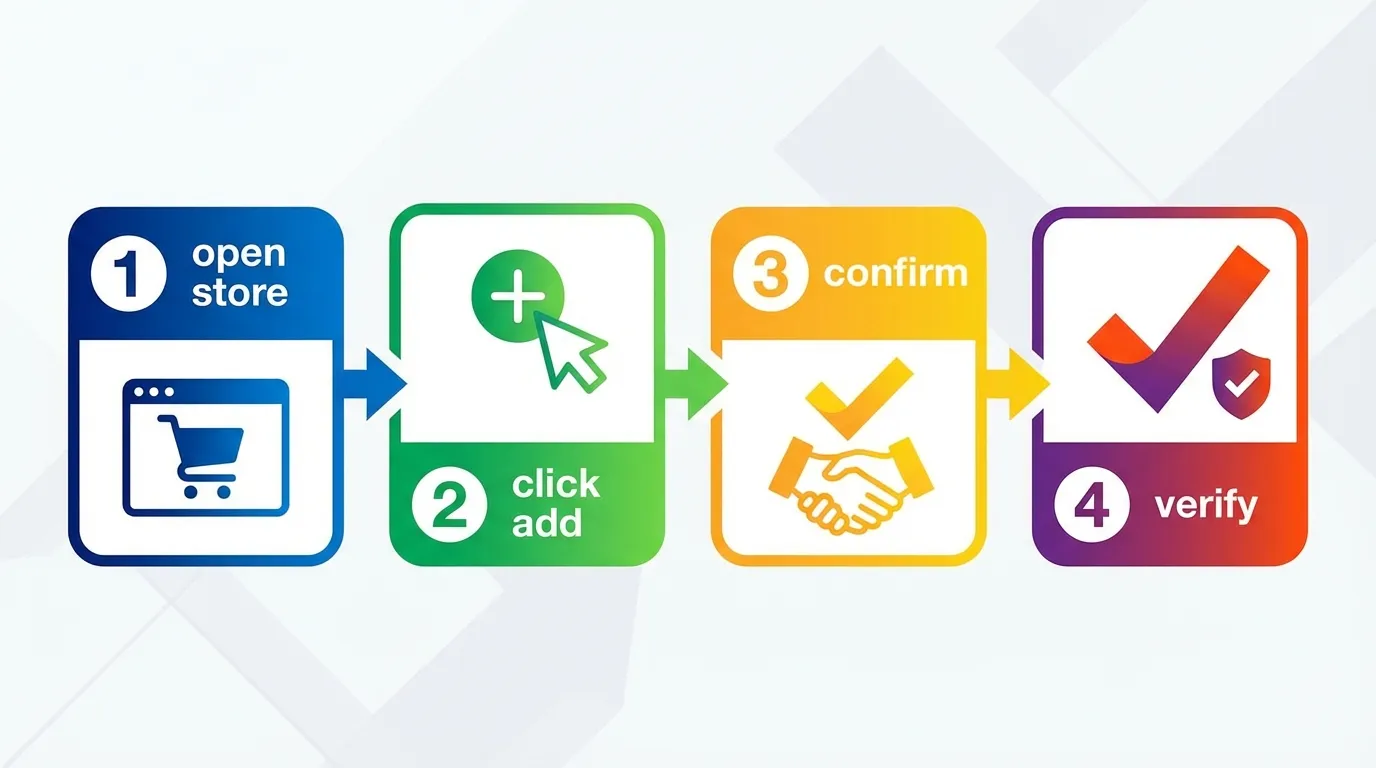
Step 3: Confirm Installation
A popup will appear asking for permission to add the extension. Click "Add extension" to confirm.
Keepa will request the following permissions:
- Read and change data on Amazon sites: This allows Keepa to display price charts on product pages
- Access to keepa.com: This lets the extension fetch price history data from Keepa's servers
These permissions are standard for price tracking extensions. For more details on Keepa's privacy practices, see our guide on whether Keepa is safe.
Step 4: Verify Installation
After installation, you'll see the Keepa icon (a small price chart) in your Chrome toolbar. Visit any Amazon product page, and you should see the Keepa price history chart embedded below the product images.
First-Time Setup: Getting the Most Out of Keepa
Once installed, take a few minutes to configure Keepa for optimal use:
Create a Free Account
While you can use Keepa without an account, creating one (free) unlocks these features:
- Price drop alerts via email, browser, or Telegram
- Tracking lists to organize products you're watching
- Sync across multiple devices
Click the Keepa icon in your toolbar, then click "Create account" to sign up with your email.
Configure Chart Settings
Click the gear icon on any Keepa chart to customize:
- Time range: Choose from 1 day to "all time" history
- Price types: Show Amazon price, third-party new, third-party used, etc.
- Sales rank: Enable to see how well a product sells (premium feature)
For a complete guide on interpreting charts, see how to read Keepa charts.
Set Up Your First Price Alert
- Visit an Amazon product page
- Click the "Track product" button on the Keepa chart
- Enter your target price (e.g., alert me when this drops below $50)
- Choose notification method (email, browser notification, or Telegram)
- Click "Start tracking"
You'll receive an alert when the price drops to or below your target.
Common Keepa Extension Problems and Fixes
Even the best extensions occasionally have issues. Here are the most common Keepa problems and how to fix them:

Problem: Keepa Chart Not Showing on Amazon
Possible causes and solutions:
- Extension is disabled: Click the puzzle piece icon in Chrome, find Keepa, and make sure it's enabled
- Conflicting extensions: Other Amazon-related extensions may interfere with Keepa. Try disabling them temporarily
- Amazon layout change: Amazon sometimes updates their page layout. Keepa usually adapts within a few days
- Ad blocker interference: Some ad blockers may block Keepa's scripts. Add Amazon and Keepa to your whitelist
Problem: "Failed to Load Price History"
This usually indicates a connection issue with Keepa's servers:
- Check Keepa's server status: Visit keepa.com to see if the main site is working
- Clear browser cache: Go to Chrome Settings > Privacy and Security > Clear browsing data
- Disable VPN: Some VPNs may block Keepa's API connections
- Wait and retry: Keepa servers occasionally experience high traffic during major sales events
Problem: Extension Slowing Down Browser
If Chrome feels sluggish after installing Keepa:
- Update Chrome: Make sure you're running the latest version
- Reduce extensions: Each extension consumes memory. Remove ones you don't use
- Disable Keepa on non-Amazon sites: Click the Keepa icon > Settings > "Only run on Amazon domains"
Problem: Price Alerts Not Working
If you're not receiving price drop notifications:
- Check your email spam folder: Keepa emails sometimes get filtered
- Verify your account: Log into keepa.com and check that your email is confirmed
- Enable browser notifications: Chrome Settings > Privacy and Security > Site Settings > Notifications > Allow for keepa.com
- Check your tracking list: Make sure the product is still being tracked and hasn't expired
Nuclear Option: Complete Reinstall
If nothing else works:
- Right-click the Keepa icon > Remove from Chrome
- Close and reopen Chrome
- Clear all browsing data (cache, cookies, etc.)
- Reinstall Keepa from the Chrome Web Store
- Log back into your Keepa account
Keepa for Other Browsers: Firefox, Edge, and Safari
Chrome isn't your only option. Here's how to get Keepa on other browsers:
Keepa for Firefox
Keepa offers an official Firefox add-on with the same features as the Chrome version:
- Open Firefox Add-ons
- Search for "Keepa" or go directly to the Keepa add-on page
- Click "Add to Firefox"
- Confirm the permissions
The Firefox version works identically to Chrome, with the same price charts and alert functionality.
Keepa for Microsoft Edge
Edge users have two options:
Option 1: Microsoft Edge Add-ons Store (Recommended)
- Open the Edge Add-ons Store
- Search for "Keepa"
- Click "Get" to install
Option 2: Install from Chrome Web Store
Edge is Chromium-based, so it can run Chrome extensions:
- Go to Edge Settings > Extensions
- Enable "Allow extensions from other stores"
- Visit the Chrome Web Store and install Keepa as normal
Keepa for Safari
Unfortunately, Keepa does not currently offer a Safari extension. Apple's stricter extension policies and Safari's smaller market share make it less attractive for developers.
Safari alternatives:
- Use Keepa's website (keepa.com) to check prices manually
- Install Chrome or Firefox for Amazon shopping
- Use the Keepa mobile app (available for iOS)
Keepa Tracks Prices—But What About Getting Money Back?
Here's something most Keepa users don't realize: price tracking is only half the battle.
Keepa is excellent at showing you price history and alerting you to drops before you buy. But what about products you've already purchased? If you bought a TV last week and it dropped $80 today, Keepa will happily show you that price drop—but it won't help you get that $80 back.
That's where TaskMonkey comes in.
The TaskMonkey Difference
| Feature | Keepa | TaskMonkey |
|---|---|---|
| Price history charts | Yes | Yes |
| Price drop alerts (before purchase) | Yes | Yes |
| Scans your past Amazon orders | No | Yes |
| Finds price drops on things you already bought | No | Yes |
| Automatically requests refunds | No | Yes (AI-powered) |
| Gets money back to your Amazon account | No | Yes |
TaskMonkey works differently: it scans your last 3 months of Amazon orders, compares what you paid to current prices, and when it finds a drop, uses AI to automatically chat with Amazon customer service to request a courtesy credit.
Amazon doesn't advertise this, but they often issue credits when you politely ask about a post-purchase price drop. We've helped users recover thousands of dollars this way.
The best approach? Use Keepa for pre-purchase research and TaskMonkey for post-purchase recovery. They complement each other perfectly.
Frequently Asked Questions
Is the Keepa Chrome extension free?
Yes, Keepa's core features (price history charts, basic alerts) are completely free. Advanced features like sales rank data, detailed export options, and API access require a premium subscription at $19/month.
Does Keepa work on Amazon international sites?
Yes! Keepa supports 11 Amazon marketplaces: USA, UK, Germany, France, Japan, Canada, Italy, Spain, India, Mexico, and Australia. The extension automatically detects which Amazon site you're on.
Can I use Keepa on mobile?
Keepa offers mobile apps for both iOS and Android. The apps let you track products and receive alerts, though you can't see embedded charts on the Amazon app. See our Keepa app review for details.
Why is Keepa showing "no price data"?
This happens when Keepa doesn't have historical data for a product. Common reasons include: new products with limited history, private label items with low sales volume, or products that were recently delisted and relisted. Give it a few weeks to accumulate data.
Is Keepa better than CamelCamelCamel?
Both are excellent tools with different strengths. Keepa has more detailed charts and data, while CamelCamelCamel is simpler and 100% free. For a detailed comparison, see our Keepa vs CamelCamelCamel vs Honey guide.
Bottom Line: Get Keepa, But Don't Stop There
The Keepa Chrome extension is an essential tool for Amazon shoppers. It takes 30 seconds to install, it's free for basic use, and it can save you from overpaying or falling for "fake" discounts.
But remember: Keepa helps you before you buy. For the purchases you've already made, you need a different solution.
Install TaskMonkey alongside Keepa. Let Keepa show you price history before you buy, and let TaskMonkey automatically recover money when prices drop after you buy. Together, they make sure you never leave money on the table.
Related Articles in This Topic
- Amazon Price Tracker (2026): Track Price Drops, See Price History & Get Alerts
- Keepa Extension — What It Is, How It Works, and Best Settings
- Keepa App Review (2026) — Price Alerts on Mobile
- Is Keepa Safe? — Permissions, Privacy, and What to Watch For
- How to Read a Keepa Chart — Price, Sales Rank, and Deal Traps
- Keepa vs CamelCamelCamel vs Honey — Which Amazon Price Tracker Should You Use?
- Amazon Price Tracker Extension — Best Chrome Extensions + Setup Guide
- How to Set Amazon Deal Alerts (Wish List, Rufus, Alexa+) — 2026
- Track Price Drops After You Buy — Can You Get Money Back From Amazon?
- Best Amazon Price Tracker App (2026) — Top Picks Compared