

What Is a Keepa Chart and Why Does It Matter?
If you've ever wondered whether that "50% off" Amazon deal is actually a bargain, Keepa is your answer. Keepa is a browser extension that embeds price history charts directly onto Amazon product pages, showing you exactly how prices have changed over time.
According to Profitero, Amazon changes prices on millions of products up to 2.5 million times per day. That means the "list price" you see right now might be completely different from what it was yesterday—or what it will be tomorrow.
Understanding how to read a Keepa chart gives you the power to:
- Verify if a discount is genuine or artificially inflated
- See the lowest price a product has ever been sold for
- Track when Amazon itself is selling vs. third-party sellers
- Understand sales velocity through rank patterns
- Set intelligent price alerts based on historical data
Let's break down every element of the Keepa chart so you can read it like a pro.
Understanding Keepa Chart Line Colors
The Keepa chart uses a color-coding system to represent different sellers and data points. Here's what each color means:
Orange Line/Shading: Amazon's Price
The orange shaded area represents when Amazon itself is selling the product. This is crucial information because:
- Amazon typically offers competitive pricing and reliable fulfillment
- Gaps in the orange shading indicate periods when Amazon was out of stock
- The line at the top of the orange area shows Amazon's exact price at that time
When you see continuous orange shading, it means Amazon has consistently had the product in stock. White gaps mean Amazon wasn't selling it during those periods—only third-party sellers were.
Blue Line: Third-Party New (Marketplace)
The blue line shows the lowest price for a new product from third-party sellers on Amazon. This includes both FBA (Fulfilled by Amazon) and FBM (Fulfilled by Merchant) sellers.
Watch for moments when the blue line dips below the orange line—these are opportunities where third-party sellers are undercutting Amazon's price.
Black Line: Third-Party Used
The black line represents the lowest price for a used version of the product. For items like books, electronics, or refurbished goods, this can be significantly lower than new prices.
Pink Line/Diamonds: Buy Box Price
The pink line or diamond markers show the Buy Box price—this is the price shown to buyers when they click "Add to Cart." According to Full-Time FBA, when the pink line aligns with the orange line, it means Amazon held the Buy Box for that product.
If you see the pink line jumping between orange and blue, it means different sellers are winning the Buy Box at different times—often due to price competition.
Green Line: Sales Rank (BSR)
The green line is one of the most important elements for understanding product demand. It shows the Best Sellers Rank (BSR) over time.
Here's how to interpret it:
- Downward spikes indicate sales—when the rank improves (lower number), the product just sold
- Consistent up-and-down movement means the product sells regularly
- Steady upward trend means the product hasn't sold in a while
- Lower numbers = better (a BSR of 3 means it's the third best-selling item in that category)
Additional Markers
| Symbol | Color | Meaning |
|---|---|---|
| Triangle | Orange | Lowest price from New FBA seller |
| Square | Blue | Lowest price from New FBM seller |
| Line | Red | Amazon Warehouse Deals (discounted items with damaged packaging) |
| Line | Yellow/Gold | Monthly unit sales (premium feature added in 2024) |
Amazon Price vs. Third-Party Price: What to Watch For
One of the most valuable insights from Keepa is understanding when Amazon is selling versus when third-party sellers dominate. Here's why this matters:
When Amazon Is the Seller
- Prices tend to be more stable
- You get Amazon's customer service and return policy
- Prime shipping is guaranteed
- Less risk of counterfeit products
When Third-Party Sellers Dominate
- Prices can fluctuate wildly based on competition
- You might find better deals from hungry sellers
- More than 15 sellers fighting for Buy Box often means a price war
- Quality and fulfillment experience may vary
According to OABeans, if Amazon is in the listing as a seller, it's tough for third-party sellers to compete. Amazon has favorable supplier conditions and is reluctant to give up the Buy Box.
How to Spot Deal Traps and Fake Discounts
This is where Keepa becomes truly powerful. Fake discounts are rampant on Amazon, especially during Prime Day and Black Friday. Here's how to use Keepa to detect them:
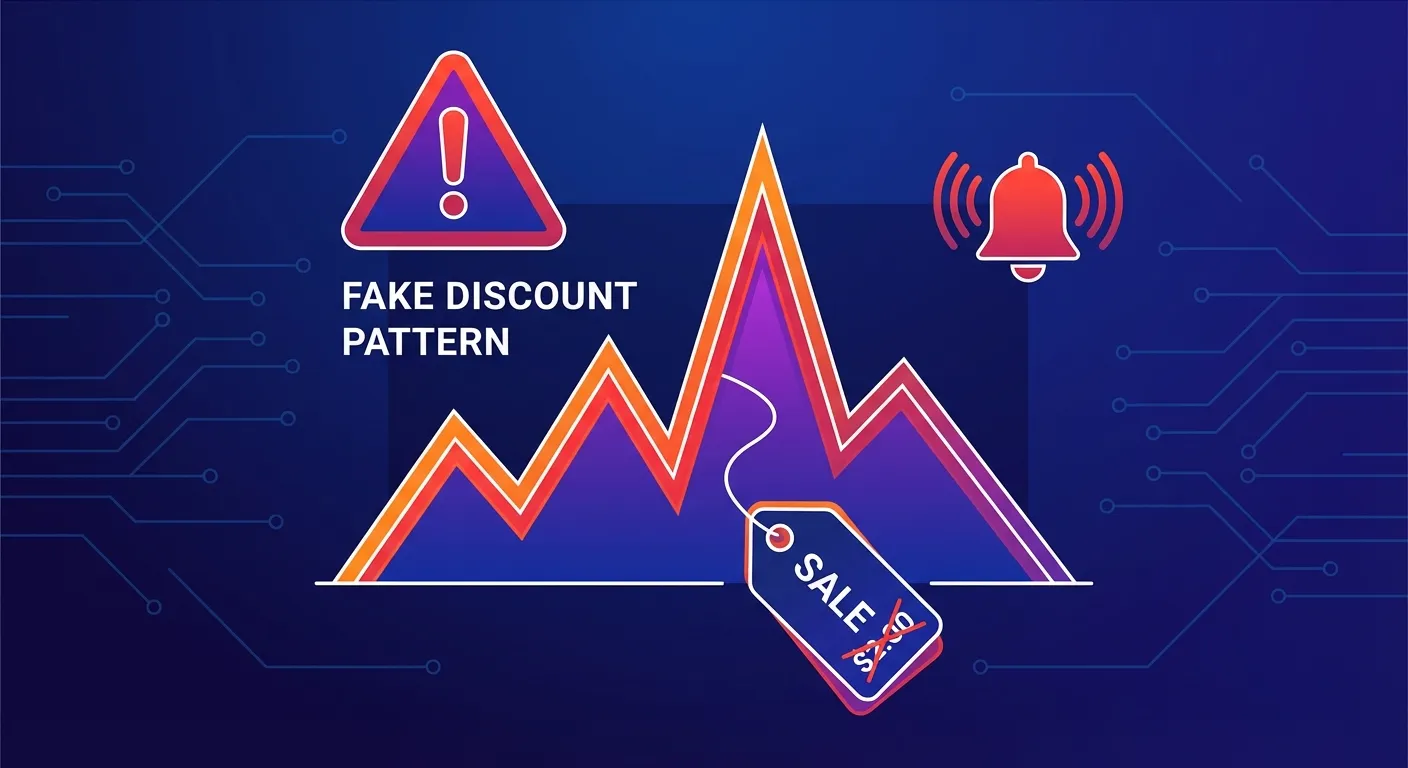
The Classic Price Inflation Pattern
According to Reader's Digest, the most common tactic is artificial price inflation before sales events. Here's how it works:
- Weeks before Prime Day or Black Friday, the price gradually increases
- On the sale day, the product is "discounted" to a lower price
- The "sale" price is often the same or higher than the regular price from months ago
With Keepa, you can see this pattern instantly. If a product shows "50% off" but the Keepa chart reveals it was selling at that "sale" price just two months ago, you know the discount is fake.
Red Flags to Watch For
- Sudden price spikes in the weeks before a sale event
- The "sale" price matches the average historical price
- The product has never been sold at the claimed "list price"
- Only weird colors or sizes are on sale (the popular ones aren't discounted)
How to Verify a Real Deal
A genuine deal on Keepa looks like this:
- The current price is at or below the lowest historical price
- There's no suspicious price spike before the sale
- The green sales rank line shows consistent movement (the product actually sells)
- Multiple sellers are offering similar low prices (not just one outlier)
Real-World Example: Analyzing a Keepa Chart
Let's walk through how to analyze a Keepa chart for a popular electronics item:
- Check the time range: Zoom out to 1 year to see the full price history
- Find the lowest price: Identify when the product hit its all-time low
- Look at the current price: Is it near the historical low, or significantly higher?
- Check Amazon availability: Is the orange shading consistent, or are there gaps?
- Analyze sales rank: Does the green line show regular up-and-down movement?
- Spot any patterns: Are there seasonal price drops (holidays, Prime Day)?
If the current price is within 10-15% of the historical low and the product shows healthy sales activity, it's likely a good time to buy.
Setting Smart Price Alerts with Keepa
Once you understand the chart, you can set intelligent price alerts:
- Click the "Track product" button on any Keepa chart
- Set your target price based on the historical low (aim for 5-10% below current)
- Choose your notification method (email, browser, or Telegram)
- Wait for Keepa to alert you when the price drops
For more details on setting up alerts, check out our guide on how to set Amazon deal alerts.
The Limitation of Keepa: What Happens After You Buy?
Here's the problem with Keepa and every other price tracker: they're fantastic at helping you decide when to buy, but they can't help you after you've already purchased.
Consider this scenario:
- You use Keepa to verify a deal is legitimate
- You buy a TV for $499
- Three days later, it drops to $399
- Keepa shows you the price history... but the $100 is already gone
This is where TaskMonkey fills the gap. While Keepa helps you look forward, TaskMonkey looks backward—scanning your past Amazon orders to find price drops and automatically negotiating refunds.
How TaskMonkey Complements Keepa
The smartest Amazon shoppers use both tools:
| Use Case | Keepa | TaskMonkey |
|---|---|---|
| Check if current deal is real | Yes | No |
| Set future price alerts | Yes | No |
| View historical prices | Yes | Yes |
| Scan past orders for price drops | No | Yes |
| Automatically request refunds | No | Yes |
| AI-powered negotiation with Amazon | No | Yes |
TaskMonkey scans your last 3 months of Amazon orders, compares what you paid vs. current prices, and uses AI to politely negotiate courtesy credits with Amazon customer service. You literally do nothing—just start the scan and come back to find money in your Amazon account.
Learn more about how TaskMonkey compares to other tools in our Keepa vs CamelCamelCamel vs Honey comparison.
Frequently Asked Questions
Is Keepa free to use?
Keepa offers a free version that includes price history charts and basic alerts. Premium features like sales rank tracking and monthly sales estimates cost $19/month. For most shoppers, the free version is sufficient. See our full Keepa extension guide for details.
How often does Keepa update prices?
Keepa updates price data approximately every 15 minutes for popular products. Less popular items may be updated less frequently.
Can I use Keepa on mobile?
Yes, Keepa has apps for both Android and iOS. You can also access Keepa charts through the mobile browser. Check out our review of the Keepa mobile app.
Why do I see gaps in the Keepa chart?
Gaps usually indicate that no seller had the product in stock during that period, or Keepa wasn't tracking that specific product at the time.
Is Keepa safe to use?
Yes, Keepa is a trusted extension with millions of users. It only requests access to Amazon domains and its own servers. Learn more in our article on whether Keepa is safe.
Bottom Line: Master Keepa, But Don't Stop There
Keepa is an essential tool for any serious Amazon shopper. Once you understand the color-coded lines—orange for Amazon, blue for third-party, green for sales rank, and pink for Buy Box—you can spot fake discounts instantly and make smarter purchasing decisions.
But remember: Keepa only helps you look forward. For purchases you've already made, you need a tool that looks backward. That's where TaskMonkey comes in—automatically recovering money on orders you never knew dropped in price.
The best strategy? Use Keepa to verify deals before you buy, and TaskMonkey to recover money after you've bought. Together, they ensure you're never leaving money on the table.
Related Articles in This Topic
- Amazon Price Tracker (2026): Track Price Drops, See Price History & Get Alerts
- Amazon Price Tracker Extension — Best Chrome Extensions + Setup Guide
- Amazon Price History Extension — How to See Price Charts on Every Product Page
- Keepa Extension — What It Is, How It Works, and Best Settings
- Keepa Chrome Extension Download — Install Steps + Fixes
- Keepa App Review (2026) — Price Alerts on Mobile
- Is Keepa Safe? — Permissions, Privacy, and What to Watch For
- Keepa vs CamelCamelCamel vs Honey — Which Amazon Price Tracker Should You Use?
- How to Set Amazon Deal Alerts (Wish List, Rufus, Alexa+) — 2026
- Track Price Drops After You Buy — Can You Get Money Back From Amazon?
- Prime Day / Black Friday "Fake Discounts" — How to Verify With Price Trackers